

Google Business Profile Posts Rejected & Reviews Not Showing Up? Why It Happens and How to Fix It
Key takeaways
- Most rejected Google posts fail because of contact details inside the text or Cloud Vision detecting overlaid graphics—not malicious spam.
- The 'Contributor Paradox' means a genuine customer sees their review on their phone, while Google's algorithmic AI filter silently hides it from the public.
- Never hammer the publish button repeatedly; follow the Clean Post Protocol and appeal missing reviews through the official GBP redressal workflow.
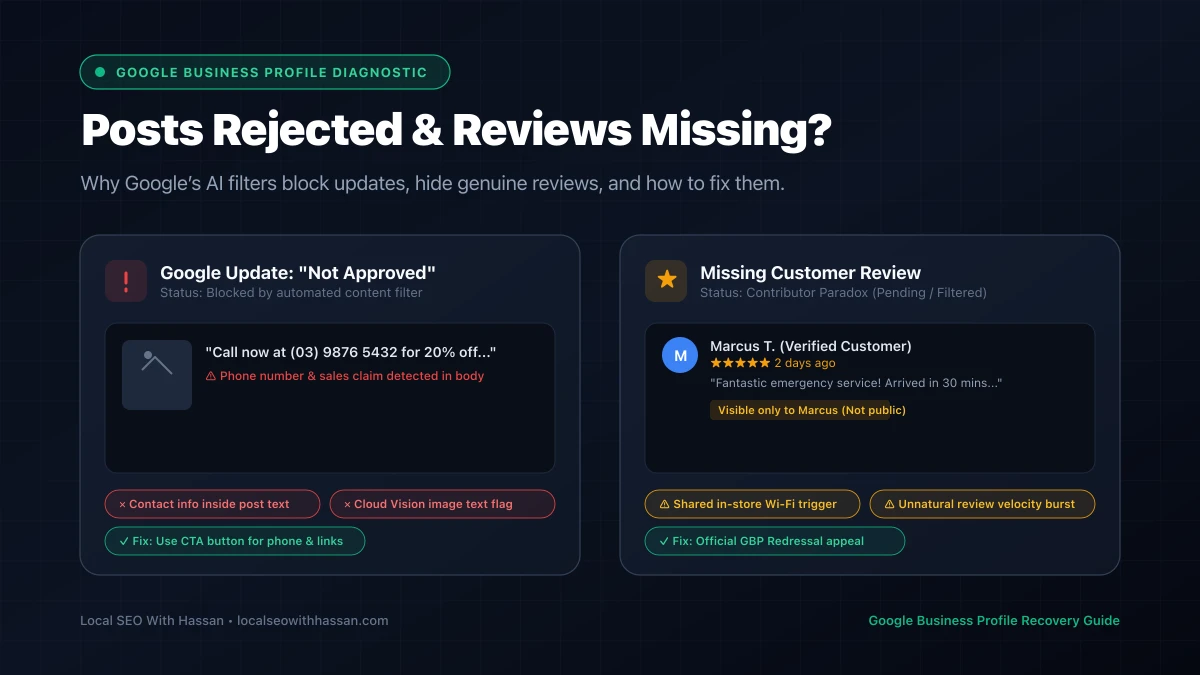
If your latest Google Business Profile (GBP) update was slapped with an instant “Not Approved” badge, or a verified customer swears they left you a glowing 5-star review that never appeared on Google Maps, you are not alone.
Across Australia, the US, and worldwide, local business owners and digital agencies are dealing with the most aggressive automated moderation filters Google has ever deployed.
Here is what is happening behind the scenes, why Google’s automated systems are intercepting your content, and the exact step-by-step protocols I use to get posts approved and missing reviews restored.
Quick answer: Why are GBP posts rejected and reviews missing?
Direct Answer (AEO Summary): Google Business Profile posts are rejected primarily by automated text parsers flagging phone numbers or links in the body text, or Google Cloud Vision detecting text overlays on images. Meanwhile, new reviews go missing due to Google’s algorithmic spam filter intercepting submissions made from shared in-store Wi-Fi networks, accounts with sudden velocity spikes, or geographic discrepancies. In both cases, content is held by automated AI gates rather than manual human reviewers.
The worldwide surge in post rejections and filtered reviews
Over the past year, Google has dramatically overhauled its spam defense infrastructure. Facing an unprecedented wave of AI-generated content, fake review rings, and lead generation spam, Google shifted from reactive human moderation to proactive, real-time algorithmic filtering.
While this protects Google Maps from junk listings, it has created massive collateral damage for honest local businesses:
- Automated AI Scanners: Every image uploaded is scanned via Google Cloud Vision API for text, logos, stock photo fingerprints, and prohibited objects.
- Aggressive NLP Filters: Natural language processing algorithms inspect update copy for contact details, sales hype, and sensitive terminology.
- Stricter Geolocation & IP Guardrails: Review submissions are analyzed for network proximity, reviewer account history, and submission velocity.
When these automated systems spot anything borderline, they don’t ask questions. Posts are rejected instantly, and reviews are silently filtered into limbo.
Why Google rejects Business Profile posts (“Not Approved” or “Pending”)
When you hit publish on an update, offer, or event, it enters an automated processing queue. If it flags any policy rule, it immediately switches to “Not approved”.
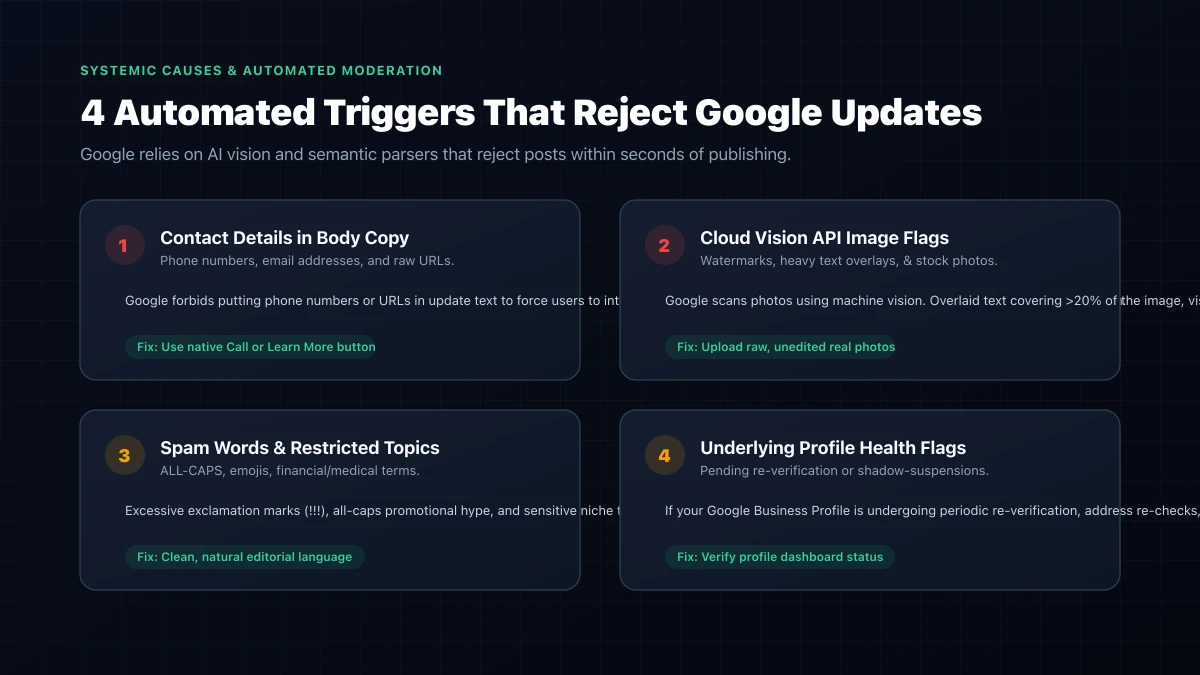
Here are the five most frequent culprits:
1. Phone numbers, emails, or links in the post text
This is the single most common reason posts fail. Google’s official policy explicitly prohibits adding phone numbers, email addresses, or raw URLs directly inside the post body.
Google requires businesses to use the built-in action button (“Call now”, “Learn more”, “Book”, or “Order online”) to route traffic. If your text contains 0412 345 678, +1 (555) 019-2834, or visit oursite.com, regex filters reject the update within seconds.
2. Cloud Vision API image triggers
Google scans every image attached to a post using machine vision. Your post will often be rejected because of the picture, even if your text is completely clean:
- Text overlays: Canva graphics with large promotional text, prices, or phone numbers covering more than 20% of the image.
- Stock photography: Generic stock photos that Google has indexed thousands of times across other domains.
- Low resolution or extreme cropping: Blurry or heavily compressed images.
- Copyrighted logos & watermarks: Visible third-party brand logos or watermark artifacts.
3. Commercial hype and spam words
Google flags copy that looks like high-pressure sales spam. Words and patterns that trigger rejections include:
- Excessive capitalization:
"HUGE SALE THIS WEEKEND ONLY" - Multiple exclamation points:
"Call us today for the best prices in town!!!!" - Prohibited or regulated product references: Alcohol, medical treatments, prescription items, firearms, CBD, or speculative financial services.
4. Duplicate content across multiple updates
Republishing the exact same text, offer, or photo every week triggers duplicate content filters. Google views identical repeated posts as low-quality spam.
5. Hidden profile health issues
If your business profile has an unaddressed notice—such as a pending re-verification request, an unconfirmed business address edit, or a temporary suspension review—all new posts will be rejected or frozen indefinitely in “Pending”.
The “Contributor Paradox”: Why legitimate customer reviews disappear
One of the most maddening situations for business owners is what I call the Contributor Paradox:
The Contributor Paradox: Your customer writes a detailed 5-star review. They can open Google Maps on their smartphone, go to Your profile > Contributions > Reviews, and see their review live. But when you check your business listing—or view it in an incognito window—the review does not exist.
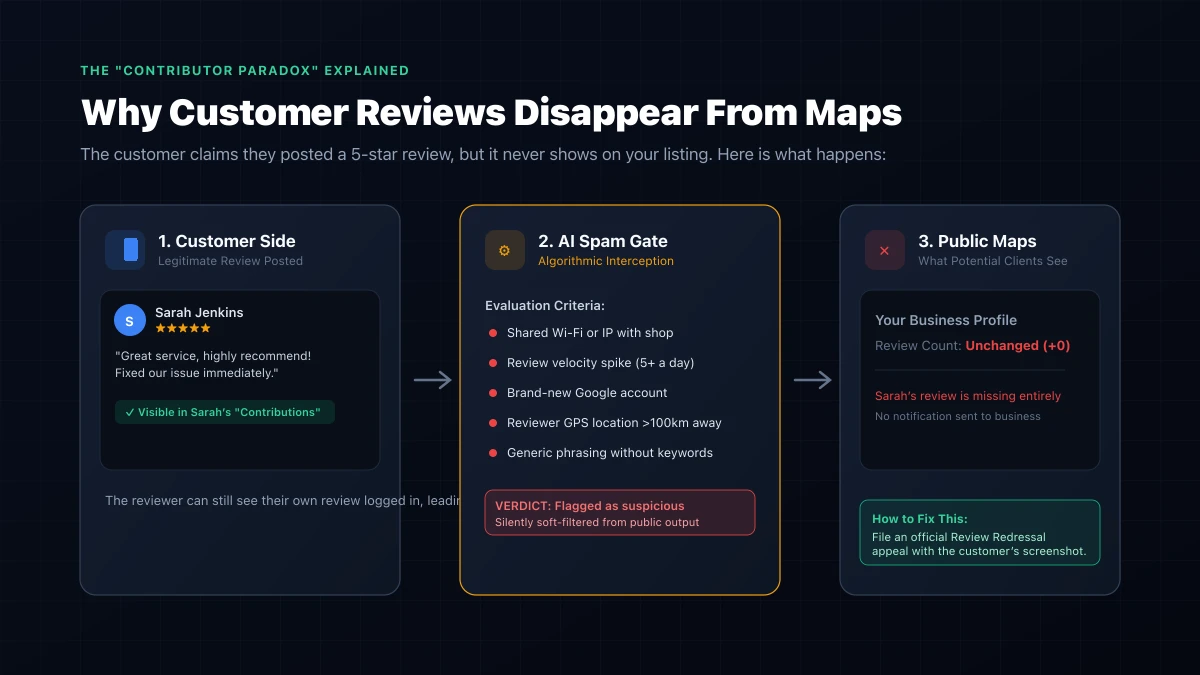
Google does not inform the reviewer that their review was suppressed, nor does it send you an alert. It simply isolates the review so only the author can see it.
Why Google’s AI filter hides genuine reviews:
- Shared Wi-Fi or IP address: If a customer connects to your store’s guest Wi-Fi and leaves a review while standing at your counter, Google flags the shared IP subnet. Google’s algorithm assumes someone from your business is reviewing their own company.
- Unnatural review velocity spikes: If you normally earn 2 reviews a month and suddenly receive 12 reviews in 48 hours (e.g., following an email blast), Google’s velocity filter freezes all incoming reviews for investigation.
- Reviewer account age and activity: Brand-new Google accounts created specifically to leave a review have near-zero trust scores. If an account has never reviewed anything else and lacks search history, its review is often shadow-filtered.
- Physical distance mismatch: If an interstate or overseas user leaves a review for a local plumbing or dental business without any location check-in data, the filter marks it as suspicious.
- Restricted phrases or URLs: Reviews containing web links, dollar amounts with aggressive claims, or words flagged under Google’s harassment or commercial bias filters get suppressed immediately.
Diagnostic comparison: Post rejection vs. Missing review
| Diagnostic Check | GBP Post Rejection (“Not Approved”) | Missing Customer Review |
|---|---|---|
| Primary Root Cause | Contact info in text, or Cloud Vision image text flag | Algorithmic spam filter (IP, velocity, account age) |
| Detection Speed | Instant to 5 minutes | Immediate silent suppression |
| Notification | Red warning icon on GBP dashboard | None (Only visible to customer in their profile) |
| First Fix Step | Remove phone/URL, replace image with raw photo | Ask customer for screenshot of Maps Contributions |
| Escalation Path | Edit & republish (or GBP Contact Us) | GBP Missing Review Redressal Appeal Form |
How to fix rejected GBP posts: The Clean Post Protocol
If your post is stuck or rejected, do not click publish repeatedly. Multiple rapid-fire rejections can trigger an account-level review. Follow this protocol instead:
Step 1: Test Plain Text  ──>  Step 2: Clean Copy  ──>  Step 3: Native Photo  ──>  Step 4: Publish
(Isolate text vs image) (Strip phones & URLs) (No text overlays) (Select CTA button)- Test a bare-bones update: Write a single, simple sentence (e.g., “We have completed our morning dispatch across Parramatta.”) with no image and select the standard “Learn more” button pointing to your homepage. If this publishes, your account health is fine and the issue was your previous copy or photo.
- Sanitize the copy:
- Remove every telephone number, email, and website address from the text block.
- Delete emojis, currency symbols, and excessive punctuation.
- Rephrase promotional slogans into informative, helpful updates.
- Replace the image:
- Discard Canva templates with bold headline text or phone banners.
- Take an authentic, real-world photo on your smartphone (your team, service vehicle, completed job, or storefront).
- Ensure the image is crisp, unedited, and free of artificial text or graphics.
- Use the official CTA button: Place your destination landing page inside the Add a button field, or select Call now to link your verified primary business phone number.
How to recover missing Google reviews (Step-by-step)
If genuine reviews have gone missing, you can recover them through Google’s official review appeal process if you have proper documentation.
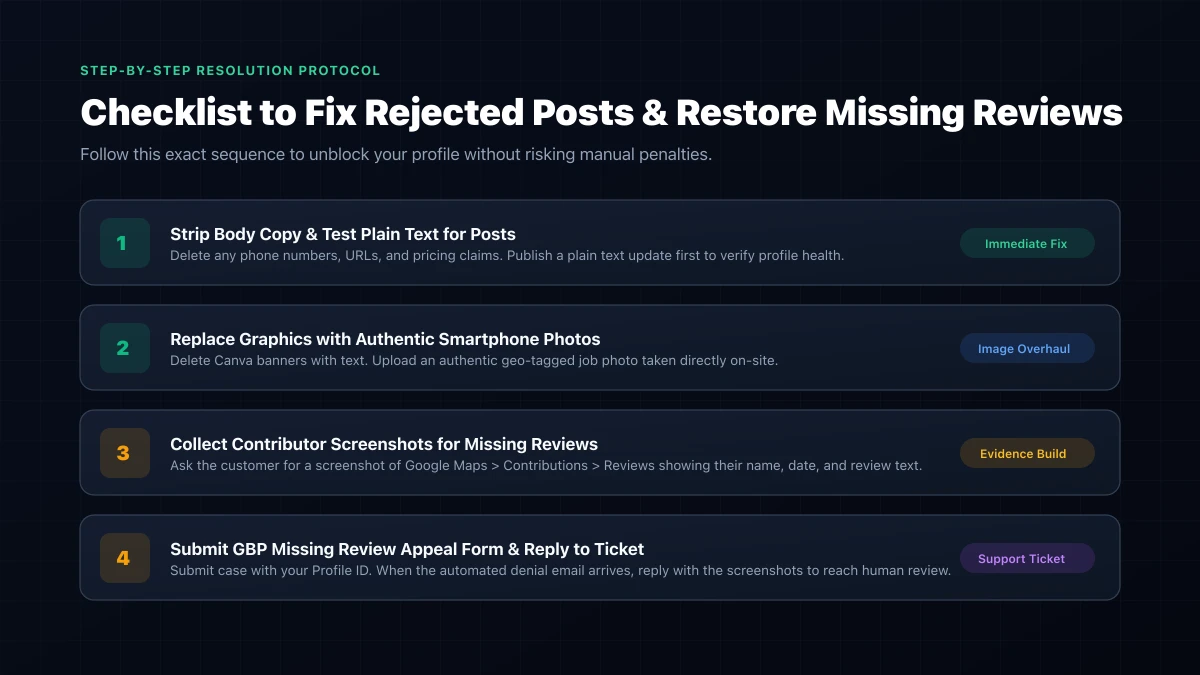
Step 1: Collect ironclad proof from your customer
Reach out politely to the customer and ask:
- “Google seems to have a glitch showing our latest reviews. Could you take a quick screenshot of your review from your Google Maps app under Your Profile > Contributions > Reviews?”
- Note down the exact reviewer name and the approximate date/time it was submitted.
Step 2: Retrieve your Business Profile ID
- Open your GBP dashboard (search
my businesson Google). - Click the three vertical dots (menu) next to your profile strength meter.
- Select Business Profile settings > Advanced settings.
- Copy your unique Business Profile ID (a 19-digit number).
Step 3: Submit the GBP Missing Review Appeal
- Navigate to the official Google Business Profile Help Center.
- Select your business from the dropdown.
- Under “Tell us what you need help with”, type Missing reviews.
- Choose Review missing and proceed to the contact step (Email).
- Fill out the details:
- Your Business Profile ID.
- The name of the missing reviewer(s).
- The date the review was posted.
- Describe that these are verified paying customers whose genuine feedback was mistakenly filtered.
- Attach the customer’s screenshot showing the review in their personal contributions tab.
Step 4: Overcome the automated rejection email
Within 12 to 24 hours, Google’s system will almost certainly send an automated boilerplate reply stating:
“We investigated your issue and found that the reviews cannot be reinstated as they violate our policies.”
Do not give up. Reply directly to that email. State clearly:
- “Please escalate this case to a human specialist. Attached is direct evidence from the customer showing the authentic review from their own Google account. This is a legitimate client who received services at our physical location. The review strictly complies with all Google Maps user-generated content policies.”
This reply routes the ticket out of the automated loop to a human tier-2 support agent. In the majority of clear-cut cases with screenshot evidence, the reviews are manually restored within 3 to 7 business days.
Step 5: Escalate via Google Business Profile Community
If support remains unhelpful, post your case on the official Google Business Profile Community Forum. Include your Case ID number (do not post personal customer data publicly). A Google Product Expert (PE) can escalate stubborn backend database synchronization bugs directly to Google’s engineering team.
How to stop Google from filtering your future reviews
Prevention is much easier than filing appeals. Put these four rules into your daily operations:
- Never ask for reviews over in-store Wi-Fi: Send review request links via SMS or email after the customer has left your premises and is on their own mobile network or home Wi-Fi.
- Pace your review requests: Send requests steadily as jobs finish. Avoid blast-emailing 500 past clients in one afternoon.
- Encourage descriptive feedback: Ask customers to mention what service was performed, which suburb they are in, or who their technician was. Authentic, specific reviews trigger fewer spam flags than a generic “Great service!”.
- Direct links only: Use your official short review link generated from your Google Business Profile dashboard (
https://g.page/r/.../review). Never use third-party gating tools that route negative feedback away, as Google penalizes review-gating schemes.
Frequently asked questions
How long does Google take to approve a pending post?
Most updates publish within 2 to 5 minutes. If a post remains in “Pending” for longer than 60 minutes, it is almost certainly caught in a moderation review queue or blocked by a profile verification issue. Delete the pending post, inspect your copy and image against the guidelines above, and repost.
Can Google restore a review that disappeared months ago?
Yes, provided you have evidence (such as the reviewer’s screenshot from their Contributions tab or an email notification confirming the review was originally posted). Google retains historical log records in its database and can un-filter reviews upon successful appeal.
Does editing a rejected post work, or should I create a fresh one?
It is always cleaner to delete the rejected post and create a fresh one. Repeatedly editing an already-flagged post can keep it trapped in the same automated rejection state.
Why did my overall review count drop suddenly overnight?
When review counts drop across multiple profiles simultaneously, it is almost always a Google algorithm update or backend database sync delay. Check industry forums (like Sterling Sky’s Local Search Forum or the GBP Community) to verify if a global sweep is underway before panicking. Genuine reviews removed during bugs are routinely restored by Google within a week.
If your business profile is suffering from persistent rejections, shadow-filtering, or map ranking drops, I can run a full technical diagnostic on your listing. You can learn more about my ongoing Google Business Profile optimization or request a detailed review of your listing.
Need help with this? Google Business Profile optimization is one of my core services.
See how I can help →
Local SEO specialist and team lead. I write about what I see working for local businesses. More about me.